This is a blog post about exploring the idea behind the CoordinatorLayout and why it is created. So you won’t see the basic usage of the CoordinatorLayout which it is already well documented somewhere else.
I’ll try to guide you go through the following topics:
- How to build a
ViewGroupto support drop-down-drawer like menuView? - Explanation of how the
TouchEventworks in Android system. - The essence of the
CoordinatorLayout. - What kind of UX problems it might happen to you with a custom
ViewGroupin this case? - How could we solve the problems by the power of a
CoordinatorLayout. - We can build more fun UI with a
CoordinatorLayout. e.g.ElasticDragLayoutandElasticDragDismissLayout.
All the code references are based on Android Support Library 25.2.0.
For some of you may not know the CoordinatorLayout.
By specifying Behaviors for child views of a CoordinatorLayout you can provide many different interactions within a single parent and those views can also interact with one another.
Why CoordinatorLayout?
The story started by “How to build a drawer like UI?”. For example:
This is quite complicated because the custom ViewGroup knows how to consume the additional momentum triggering by an over-dragging gesture (additional dx or dy). In order to build a drawer like ViewGroup, you need to know …
How is the touch event handled in the Android?
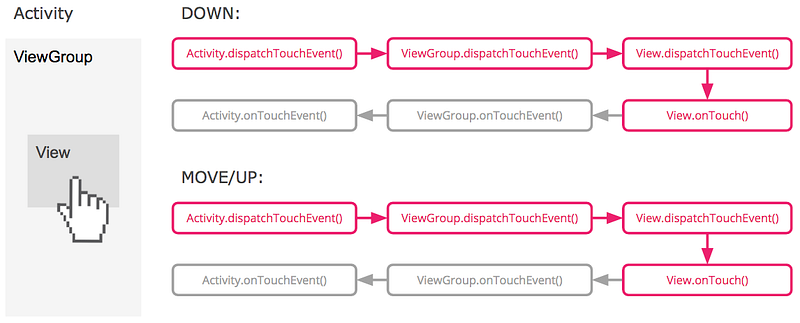
The chain calls starts by the Activity calls the root View’s dispatchTouchEvent function. The event is passed from top all the way down to the bottom, to the most inner child view.
In the above figure, all the nested parent views are not interested in intercepting the touch event (returns false in the onInterceptTouchEvent call). And the child view returns true in the onTouchEvent call to indicate the system that the event is handled here.
The Android system allows one
TouchEventhandled by oneViewat a time. But it allows multipleTouchEvents handled by severalViews at a time.
And How To Show The Hidden Menu View?
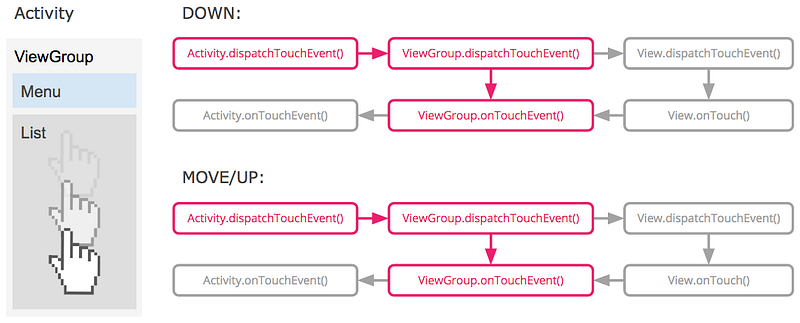
The CustomViewGroup intercepts the touch event which is currently handling by the ListView when it knows the ListView cannot consume the additional dragging momentum anymore. The CustomViewGroup will consume the additional dragging momentum by moving the MenuView and the ListView a little bit downward (changing the translationY).
Here is the snippet of ViewGroup#dispatchTouchEvent.
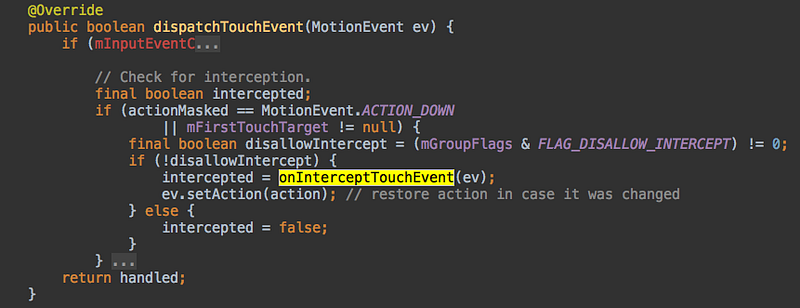
Snippet of ViewGroup#dispatchTouchEvent
ViewGroup#dispatchTouchEvent is a bit complicated and responsible for dispatching child view’s onTouchEvent. If all the children view don’t want to handle the touch event, it calls its onTouchEvent.
Most important and annoying thing before the CustomViewGroup intercepts the touch event from being handled by the ListView is, remember to cancel the previous touch event.
private void cancelChildrenTouchEvent(MotionEvent event) {
    // MotionEvent.obtain creates a new MotionEvent`, copying from an existing one.
    final MotionEvent canceledEvent = MotionEvent.obtain(event);

    // The event was handled by the certain child view. In order to make the touch event
    // lifecycle complete, we have to fake a ACTION_CANCEL for the child view.
    // Otherwise, it would be chaos.
    canceledEvent.setAction(MotionEvent.ACTION_CANCEL);
    super.dispatchTouchEvent(canceledEvent);
    canceledEvent.recycle();

    // Fake our touch event for the same reason.
    event.setAction(MotionEvent.ACTION_DOWN);
}
When the CustomViewGroup wants to let the ListView to handle the touch event again, it need to cancel the previous event too.
private void cancelSelfTouchEvent(MotionEvent event) {
    final MotionEvent canceledEvent = MotionEvent.obtain(event);

    canceledEvent.setAction(MotionEvent.ACTION_CANCEL);
    onTouchEvent(canceledEvent);
    canceledEvent.recycle();
}
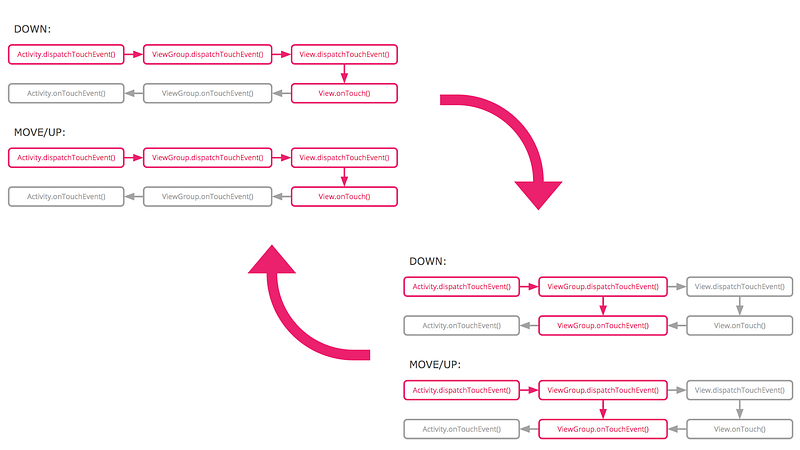
So the CustomViewGroup essentially maintains the three states (menu-is-hidden, settling, menu-is-present) and manages whom is responsible for the TouchEvent. It’s annoying and difficult to manage.
But The “Dragging Slop” Destroy the UX
So you may tell from the above video that the initial touch position is actually shifted a bit upward (It is at the chest of the robot initially and ends up at the nose of the robot). That’s because we repeat the steps of scrolling down to show the drop-down menu and scrolling up to hide the drop-down menu. That makes the CustomViewGroup hand over the TouchEvent to the ListView and then get it back brutally. Every time the ListView takes over the touch event from its parent, it needs to re-determine the dragging gesture by seeing the dy is over a dragging slop.
With CoordinatorLayout
I think we could avoid the “dragging slop” side-effect by simply letting the ListView be the only one handling the TouchEvent. More important, the ListView is also responsible for delivering the additional dx or dy to its sibling View so its the sibling View interacts with the additional momentum. e.g. Showing the MenuView.
The CoordinatorLayout could help with it!
By specifying Behaviors for child views of a CoordinatorLayout you can provide many different interactions within a single parent and those views can also interact with one another.
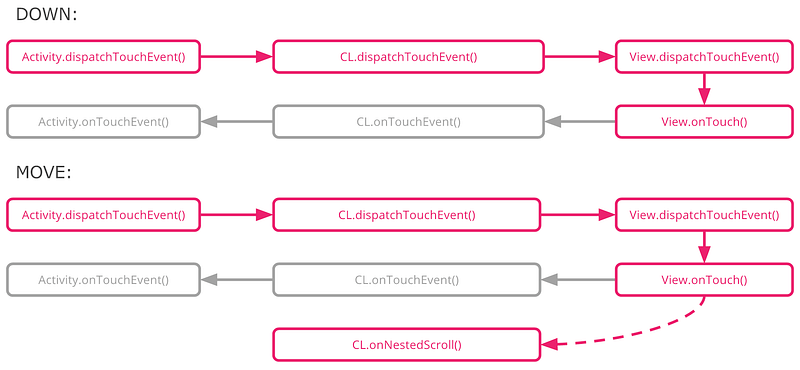
As the figure, the CoordinatorLayout opens a backdoor for us to coordinate its child View with the ways of consuming the additional dx or dy.
Smoke & Mirrors
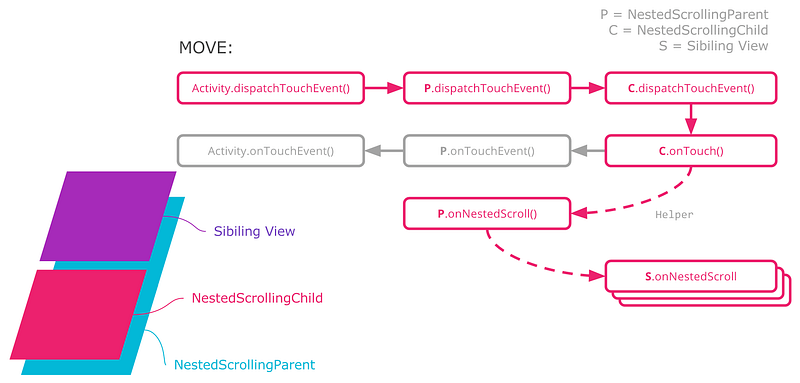
CoordinatorLayoutimplementsNestedScrollingParentandNestedScrollingChild.
It is named CoordinatorLayout because the CoordinatorLayout plays a role of coordinating its children Views (with CoordinatorLayout.Behavior in the LayoutParams) the ways of consuming the additional dx or dy produced by the NestedScrollingChild. The CoordinatorLayout decides the order of the consuming.
Still, How to build the drawer like drop-down menu?
We could let the ListView implementing NestedScrollingChild interface be the one who handles the TouchEvent. When the ListView found itself cannot consume the dragging momentum anymore, it forwards the additional momentum to its parent, the NestedScrollingParent. The NestedScrollingParent either changes the position of MenuView manually or let MenuView moves itself. If there is still remaining additional dx or dy, the NestedScrollingParent would forward the momentum to other child Views with Behavior until the momentum is totally consumed.
HorizontalGridView, NestedScrollView, RecyclerView, SwipeRefreshLayout, VerticalGridView all implements
NestedScrollingChild.
NestedScrollingChild
The NestedScrollingChild is responsible for delivering the additional dx and dy by calling dispatchNestedScroll. It is like a producer of the momentum. You could found what Views implements the interface in the official document.
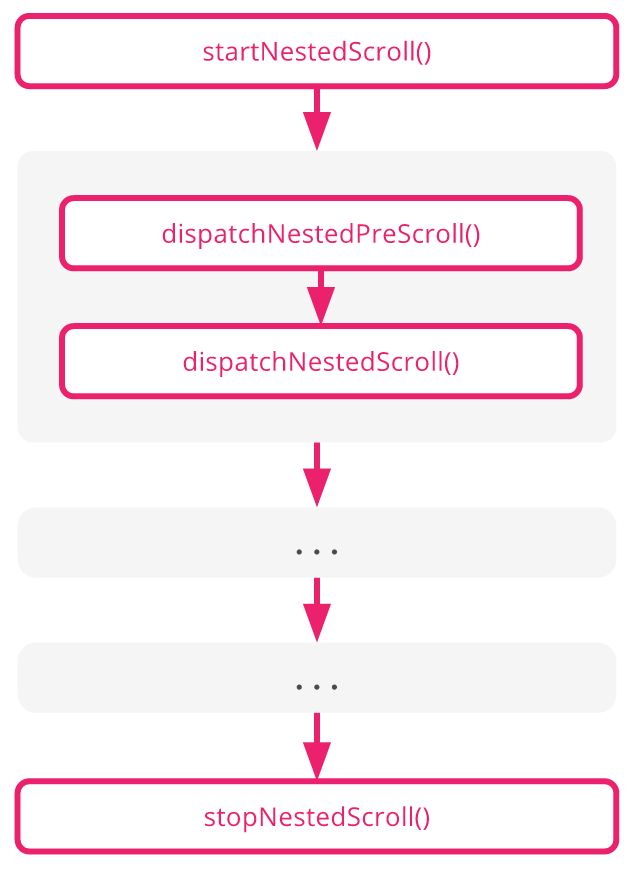
Classes implementing this interface should create a final instance of a
NestedScrollingChildHelperas a field and delegate any View methods to theNestedScrollingChildHelpermethods of the same signature.
Here is a snippet of NestedScrollingChild.
public interface NestedScrollingChild {
    /**
     * Begin a nestable scroll operation along the given axes.
     *
     * @param axes Flags consisting of a combination of {@link ViewCompat#SCROLL_AXIS_HORIZONTAL}
     *             and/or {@link ViewCompat#SCROLL_AXIS_VERTICAL}.
     * @return true if a cooperative parent was found and nested scrolling has been enabled for
     *         the current gesture.
     */
    public boolean startNestedScroll(int axes);

    /**
     * Stop a nested scroll in progress.
     */
    public void stopNestedScroll();

    /**
     * Dispatch one step of a nested scroll in progress.
     *
     * @param dxConsumed Horizontal distance in pixels consumed by this view during this scroll step
     * @param dyConsumed Vertical distance in pixels consumed by this view during this scroll step
     * @param dxUnconsumed Horizontal scroll distance in pixels not consumed by this view
     * @param dyUnconsumed Horizontal scroll distance in pixels not consumed by this view
     * @param offsetInWindow Optional. If not null, on return this will contain the offset
     *                       in local view coordinates of this view from before this operation
     *                       to after it completes. View implementations may use this to adjust
     *                       expected input coordinate tracking.
     * @return true if the event was dispatched, false if it could not be dispatched.
     */
    public boolean dispatchNestedScroll(int dxConsumed, int dyConsumed,
            int dxUnconsumed, int dyUnconsumed, int[] offsetInWindow);

    /**
     * Dispatch one step of a nested scroll in progress before this view consumes any portion of it.
     *
     * @param dx Horizontal scroll distance in pixels
     * @param dy Vertical scroll distance in pixels
     * @param consumed Output. If not null, consumed[0] will contain the consumed component of dx
     *                 and consumed[1] the consumed dy.
     * @param offsetInWindow Optional. If not null, on return this will contain the offset
     *                       in local view coordinates of this view from before this operation
     *                       to after it completes. View implementations may use this to adjust
     *                       expected input coordinate tracking.
     * @return true if the parent consumed some or all of the scroll delta
     */
    public boolean dispatchNestedPreScroll(int dx, int dy, int[] consumed, int[] offsetInWindow);
}
NestedScrollingParent
The NestedScrollingParent has different responsibility. It is responsible for consuming the momentum produced by the NestedScrollingChild. So it’s like a consumer. Consuming doesn’t mean all the additional momentum is taken by the NestedScrollingParent. It could redirect the momentum to other children Views. If there are remain, it could pass to its parent as well. But in that case, the CustomViewGroup is a NestedScrollingParent as well as a NestedScrollingChild.
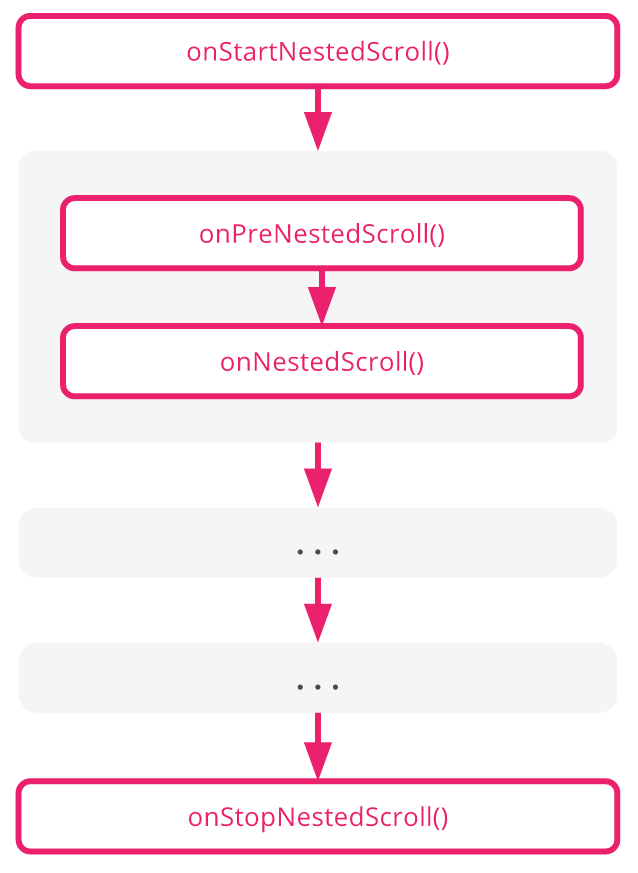
Classes implementing this interface should create a final instance of a
NestedScrollingParentHelperas a field and delegate any View or ViewGroup methods to theNestedScrollingParentHelpermethods of the same signature.
In the following snippet, you will see the NestedScrollingParent dispatches the dx or dy to the children Views with CoordinatorLayout.Behavior.
public class CoordinatorLayout extends ViewGroup
    implements NestedScrollingParent {

    @Override
    public void onNestedScroll(View target, int dxConsumed, int dyConsumed,
            int dxUnconsumed, int dyUnconsumed) {
        final int childCount = getChildCount();
        boolean accepted = false;

        for (int i = 0; i < childCount; i++) {
            final View view = getChildAt(i);
            if (view.getVisibility() == GONE) {
                // If the child is GONE, skip...
                continue;
            }

            final LayoutParams lp = (LayoutParams) view.getLayoutParams();
            if (!lp.isNestedScrollAccepted()) {
                continue;
            }

            final Behavior viewBehavior = lp.getBehavior();
            if (viewBehavior != null) {
                viewBehavior.onNestedScroll(this, view, target, dxConsumed, dyConsumed,
                        dxUnconsumed, dyUnconsumed);
                accepted = true;
            }
        }

        if (accepted) {
            onChildViewsChanged(EVENT_NESTED_SCROLL);
        }
    }
}
CoordinatorLayout.Behavior
In a nutshell, Behavior is a special resident of the LayoutParam. Views within a CoordinatorLayout can specify a Behavior that defines how that view interacts with other views.
There are three ways of assigning a Behavior to the View, either works:
1. Use the app:layout_behavior attribute to point to your Behavior subclass.
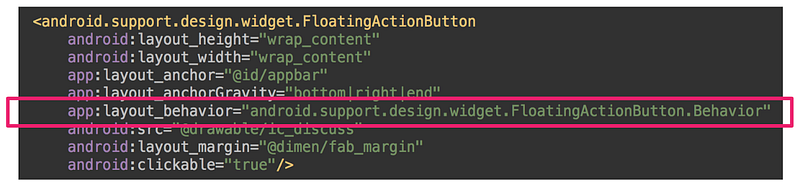
2. Use @CoordinatorLayout.DefaultBehavior annotation to point to your Behavior subclass.

3. Programmatically.
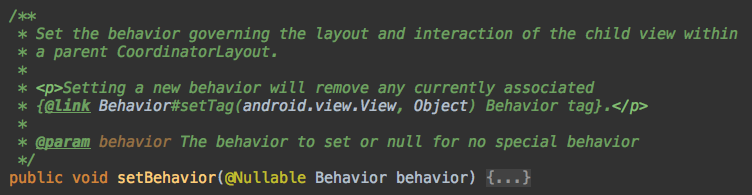
Build A Custom ElasticDragLayout
After a long journey, you could start to build a fun UI with the CoordinatorLayout. I was inspired by Plaid and came up with this idea.
Can I build a RecyclerView that can be over dragged like iOS?
There are several ways to approach it. For example, Customize a LayoutManager to place items in very special way when over dragging. But I’m providing you a more simple way with power of CoordinatorLayout. It’s very easy to apply the over-dragging effect everywhere and the only change is to modify the layout XML file.
Enclose your RecyclerView or NestedScrollView with the ElasticDragLayout like following snippet.
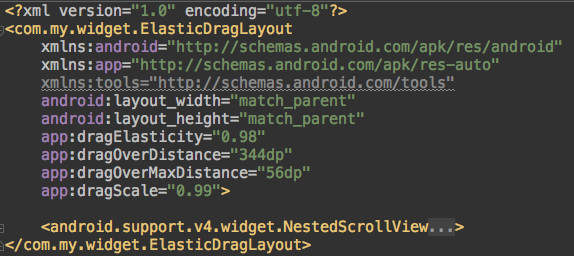
The only constraint is to make sure the enclosed
ListViewsupports nested-scrolling. HorizontalGridView, NestedScrollView, RecyclerView, SwipeRefreshLayout, VerticalGridView all supports.
Here is the demo video,
How about having a ElasticDragDismissLayout?
The ElasticDragDismissLayout is a ViewGroup letting you to dismiss the Activity by over dragging vertically. In the code, I didn’t use framework transition because: (1) I’m not quite familiar with it. (2) It seems not support backward compatibility very well.
You could find the complete demo project in my Github repo. Thanks you all read the article, feel free to have discussion with me. :)