You could make an Activity float on the other Activities with a translucent window background, e.g. PicCollage app. That provides the end users with a visually-pleasing UX.
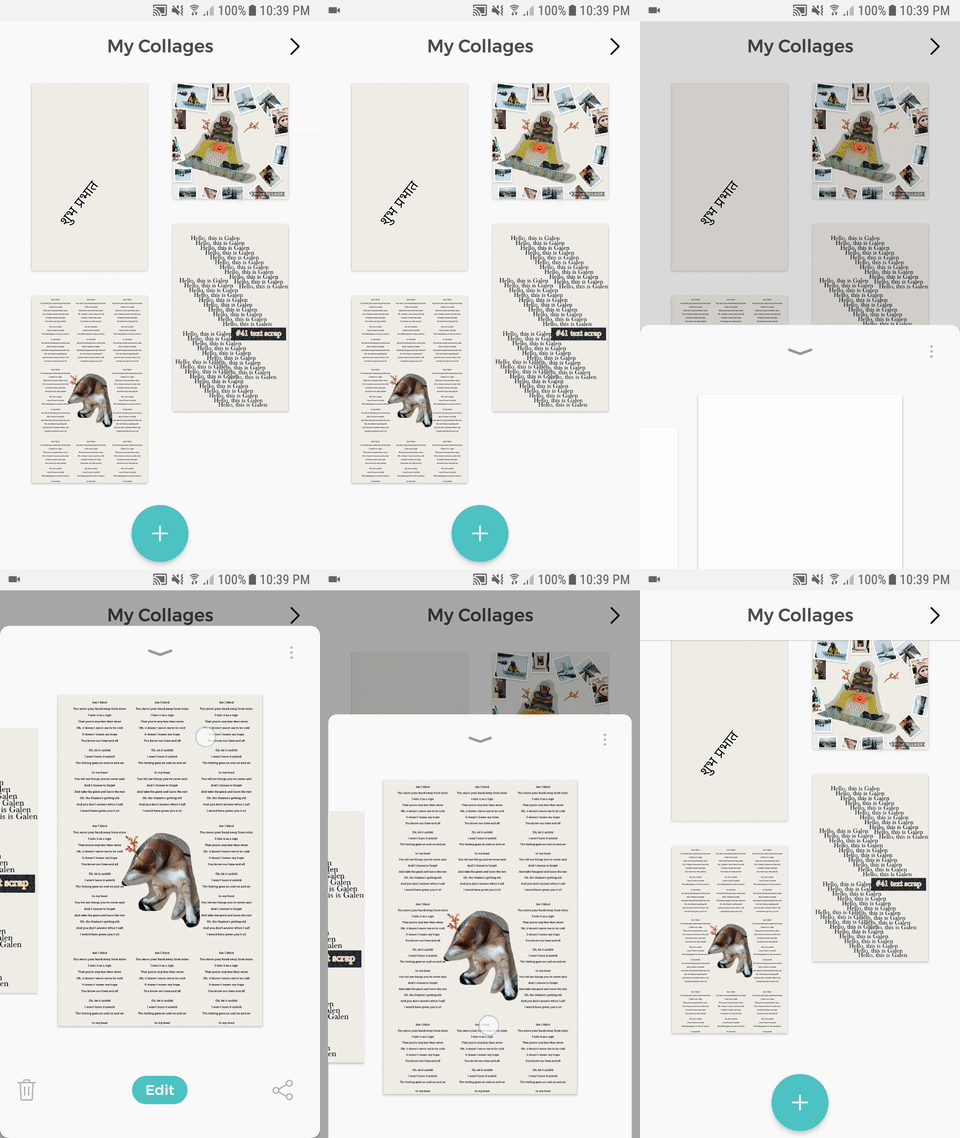
PicCollage Android app
The magic is the Android manifest theme declarations, android:windowIsTranslucent=true . For example:
<resources xmlns:tools="http://schemas.android.com/tools">

    <!-- Transparent Window Activity -->
    <style name="AppTheme.TransparentWindow" parent="AppTheme.CustomToolbar">
        <!--
        We want the translucent background painted by the root layout instead
        of painted by the window.
        -->
        <item name="android:windowIsTranslucent">true</item>

        <item name="android:windowBackground">@android:color/transparent</item>
        <item name="android:windowContentOverlay">@null</item>
        <item name="android:windowIsFloating">false</item>
        <item name="android:backgroundDimEnabled">false</item>
        <item name="android:colorBackgroundCacheHint">@null</item>
    </style>
</resources>
Setting AppTheme.TransparentWindow to your Activity makes the window of your Activity transparent (not just translucent, it is crystal transparent) and can decide what color or whatever to draw in your custom layout, view or view group.
Curate’s Egg
Something to be aware of is that the Activity under the floating Activity will be PAUSED rather than STOPPED when the system is in low memory, where the Activity’s lifecycle might not act as you expect to. This phenomenon is made easy to be observed by turning on the Don’t Keep Activity (abbreviation as DKA later) debug settings.
Let’s take a look of the example:
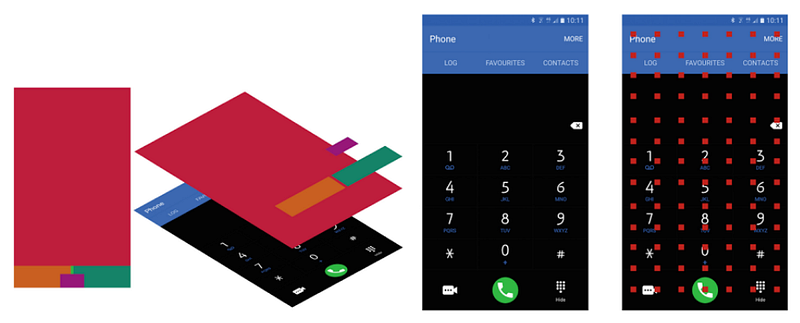
I got a foreground Activity with android:windowIsTranslucent=true theme declaration and it is launched by another Activity, where I call it the background guy. Visually, you could still see some part of the background Activity through the transparent pixels in the foreground Activity.
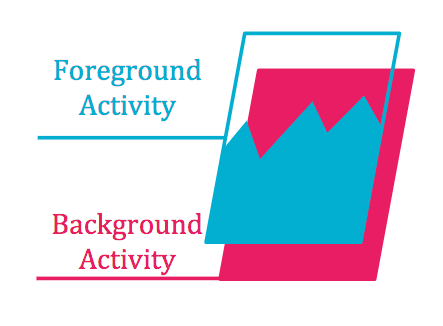
Blue one is the active Activity with translucent window and the red one is the Activity right below it.
What would happen to the Activities if you put your app into the background?
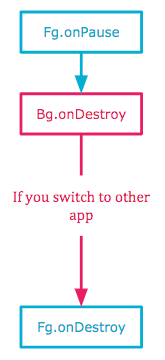
The background Activity would definitely be killed and the foreground Activity might survive until you switch to other app.
And this is when you bring back your app to the foreground:
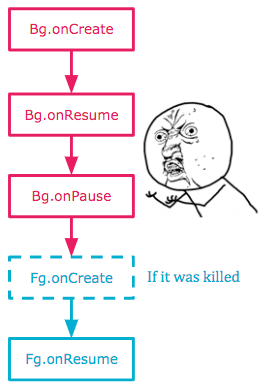
The background Activity is created, and then onResume and onPause are called in order. And the foreground Activity is then brought to life. If you happen to bind the business logic with the Activity lifecycle, you might need pay extra attention to the strange Activity lifecycle. Anyway, my job is to inform you on this bizarre Activity behaviors and I’ll just leave the rest of work for you.
The behavior is observed on Android Nougat (ver. 7)and is probably so for the lower versions.
How Do I Notice That?
It is made easy by using the adb command:
adb shell dumpsys activity activitiesAnd you will get the long log like the one below:
Display #0 (activities from top to bottom): Stack #1: Task id #568 * HIST #1 * HIST #2 ... Task id #564 ... Stack #0 ...For those you might not know Android tasks and back stack, the task here is the process running on the system and also a collection of Activities that users interact with. You need to find your app’s task and activities by searching the package name.
For each Activity, there is an interesting line in the long log:
state=STOPPED stopped=true delayedResume=false finishing=falseUsually, if the Activity is in the back stack and DKA is enabled, the state is STOPPED. The log would be like:
state=RESUMED stopped=false delayedResume=false finishing=falsestate=STOPPED stopped=true delayedResume=false finishing=falsestate=STOPPED stopped=true delayedResume=false finishing=falsestate=STOPPED stopped=true delayedResume=false finishing=false...Only the most recent Activity is in the RESUMED state. But if you assign your top most Activity with the theme declaration, android:windowIsTranslucent=true, the second most recent Activity would be in the PAUSED state rather than STOPPED.
state=RESUMED stopped=false delayedResume=false finishing=falsestate=PAUSED stopped=false delayedResume=false finishing=falsestate=STOPPED stopped=true delayedResume=false finishing=falsestate=STOPPED stopped=true delayedResume=false finishing=false...This is how I reason the observation of the strange Activity lifecycle.
Conclusion
With android:windowIsTranslucent=true, you could have a beautiful Android app with the overhead of special Activity lifecycle. Engineerings is always tradeoffs!
In addition to that, I found out by Googling that it might be one of the techniques used to hack in people’s Android phones. Check out the link.
Lastly, if you guys know about what exactly happens to the Activity and Window when given the special theme declaration, please let me know.
Thanks for reading. :P